Help & Guide/Getting started
Connect a store
Open in appChoose a platform and complete the matching wizard.
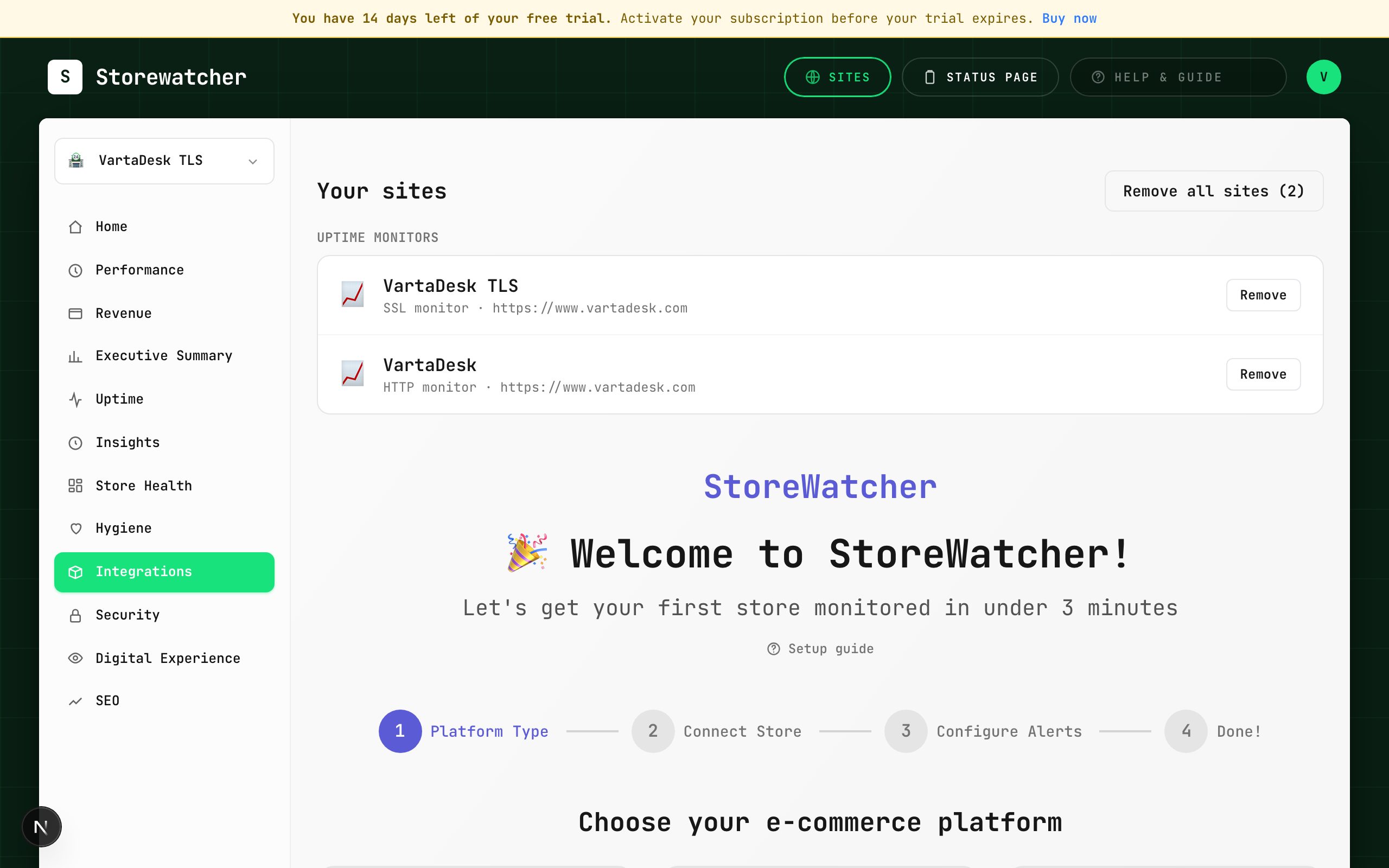
- 1Go to Integrations (sidebar) or Add new site in the site switcher.
- 2Select Magento 2, WordPress / WooCommerce, or Shopify. Adobe Commerce uses the Magento path.
- 3Follow the platform article linked below. Magento and WooCommerce need a store-side package; Shopify uses OAuth.
- 4Stay on the wizard until the first snapshot arrives. “Connected over HTTP only” means the module is not pushing yet.
You can connect more than one store. Each appears in the site switcher. Removing a connection from Integrations deletes that integration and its synced data.
If the store sits behind Cloudflare or a WAF, Magento and WooCommerce still work because the extension pushes data out. A failed REST “test connection” is not a hard stop for WooCommerce.
Related
- Connect Magento 2Create the store record, install the extension, paste the API key, wait for sync.
- Connect WordPress / WooCommerceOptional REST keys, then install the plugin so the store can push.
- Connect ShopifyAuthorize the shop, then confirm webhooks.
- Connect BigCommerceAPI credentials, then confirm the storefront URL is being probed.
- When a page asks for the moduleModuleGate pages stay empty until the store plugin has synced.
- How origin health works by platformWhat CPU, RAM, disk, and load mean — and which stores can send them.
Still stuck? Open a support ticket.