Help & Guide/Incidents & communications
Configure alerts
Open in appEmail, Slack, SMS, WhatsApp, webhook, PagerDuty, plus a severity floor.
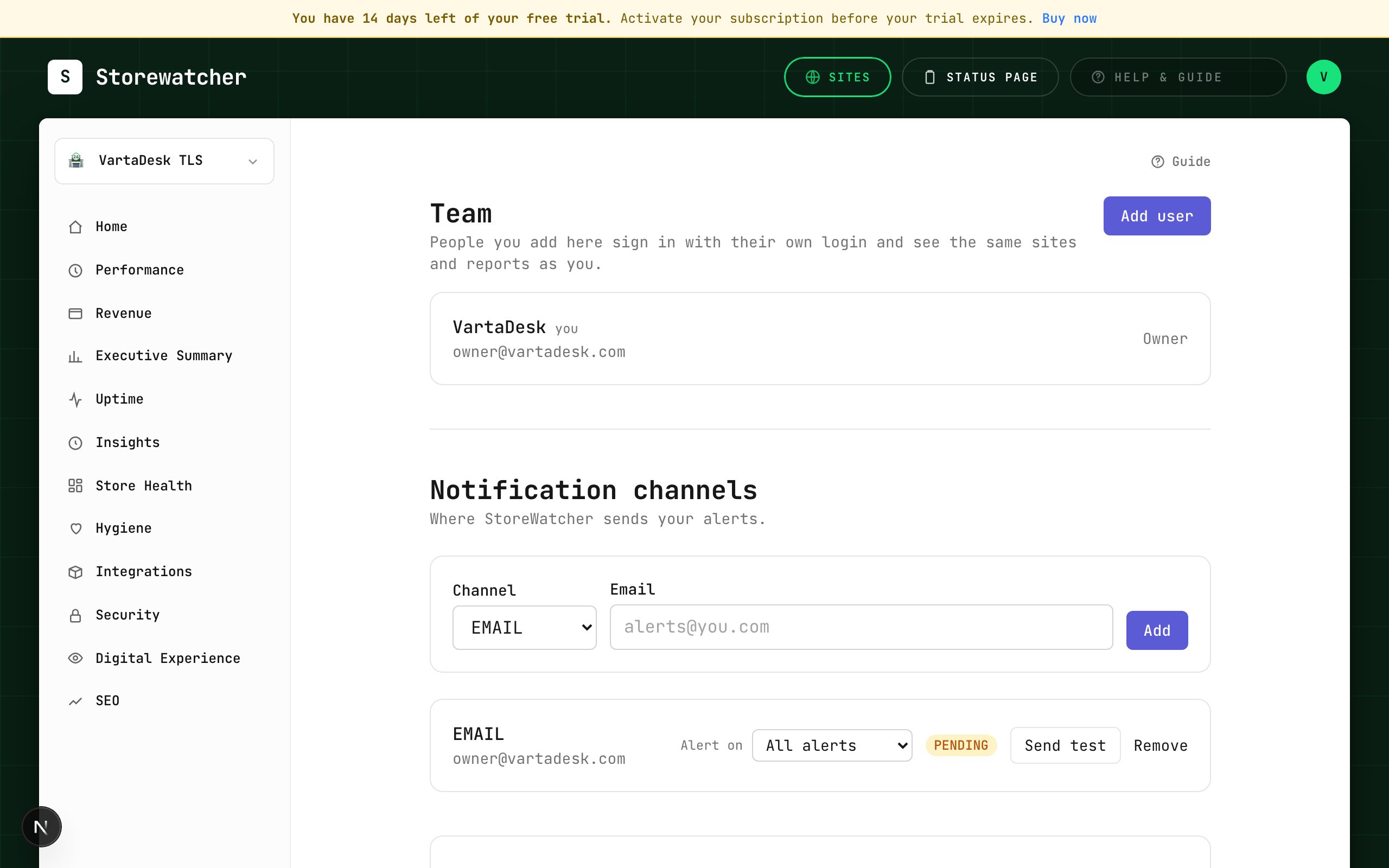
- 1Open Settings → Alerts.
- 2For email, fill To and optional CC.
- 3Send test / verify. Unverified channels may not be used for real routing.
- 4Set “Alert on” to all / minor+ / major+ / critical only.
- 5Optionally add per-monitor routing on the monitor detail page.
Maintenance windows suppress alerts for a monitor (or all monitors) during a window. Anomaly thresholds change when baseline detectors fire, not the raw up/down probe. Origin-health advisories (CPU, RAM, disk, slow DB/render) are tracked on Incidents and Store Health and are never emailed — mail is for outages, checkout failures, and SSL/domain expiry.
If you add more than one email, a given alert is one message: To plus CC. Alert history then shows a single row with every To/CC address.
Down and recovery mail is once per outage, not on every 5-minute plugin or probe check and not again every 3 hours while it continues. Recovery is mailed once when it actually recovers. A flap after recovery stays quiet for 3 hours. A different outage — checkout vs storefront down — still emails immediately. Origin self-check slowing-down is in-app only. Origin-pulse checkout and the browser checkout share that one checkout mail.
Related
- SettingsAlerts, origin health, checkout, planned work, team, and advanced detectors.
- Maintenance windowsSilence alerts while you deploy.
- Anomaly thresholdsHow far from this store’s baseline before a detector fires.
- Respond to an incidentFrom alert to ack, diagnosis, optional RCA draft, and resolve.
- Alert historyProof of every email, SMS, Slack, and other alert we attempted for this account.
Still stuck? Open a support ticket.