Help & Guide/Incidents & communications
Respond to an incident
Open in appFrom alert to ack, diagnosis, optional RCA draft, and resolve.
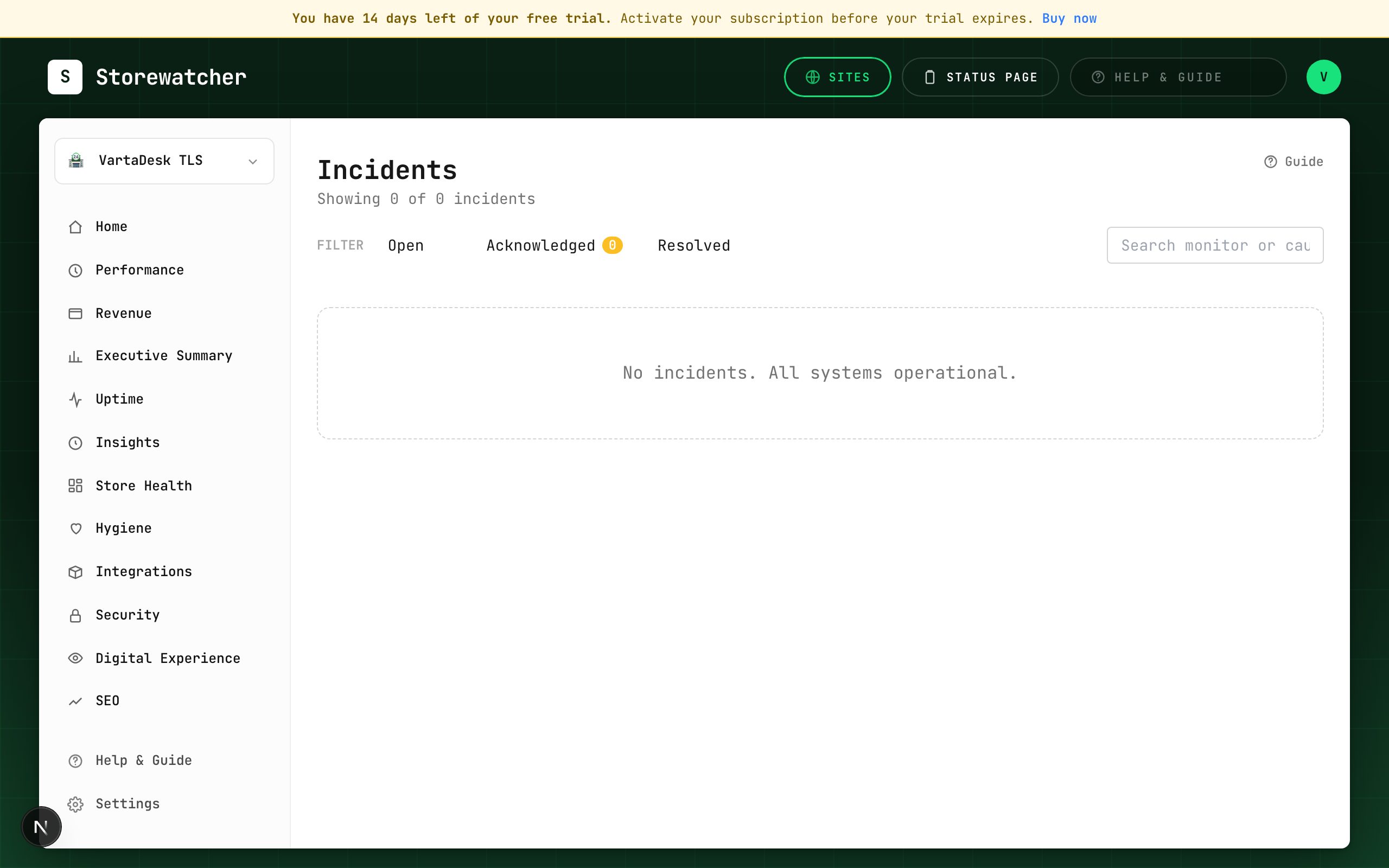
- 1Open the incident from the alert, Insights, or /incidents.
- 2Acknowledge so the rest of the team knows it is owned.
- 3Read failing check results on the incident. Confirm it is not a maintenance window or a single-region blip.
- 4Optionally generate an RCA draft (Pro+). Read citations; publish only if you want the text as an incident note.
- 5Fix the store or monitor. Resolve the incident. Publish a status-page update if customers should see it.
If nobody was notified, check Settings → notification channels (verified? severity floor too high?) and that the monitor is not paused.
Related
- IncidentsLifecycle for confirmed outages: open, acknowledge, resolve, notes.
- Configure alertsEmail, Slack, SMS, WhatsApp, webhook, PagerDuty, plus a severity floor.
- Generate an RCA draftHuman-gated write-up from check evidence. Never auto-acks or resolves.
- Publish a status updateOptional AI draft, then a human publishes.
Still stuck? Open a support ticket.